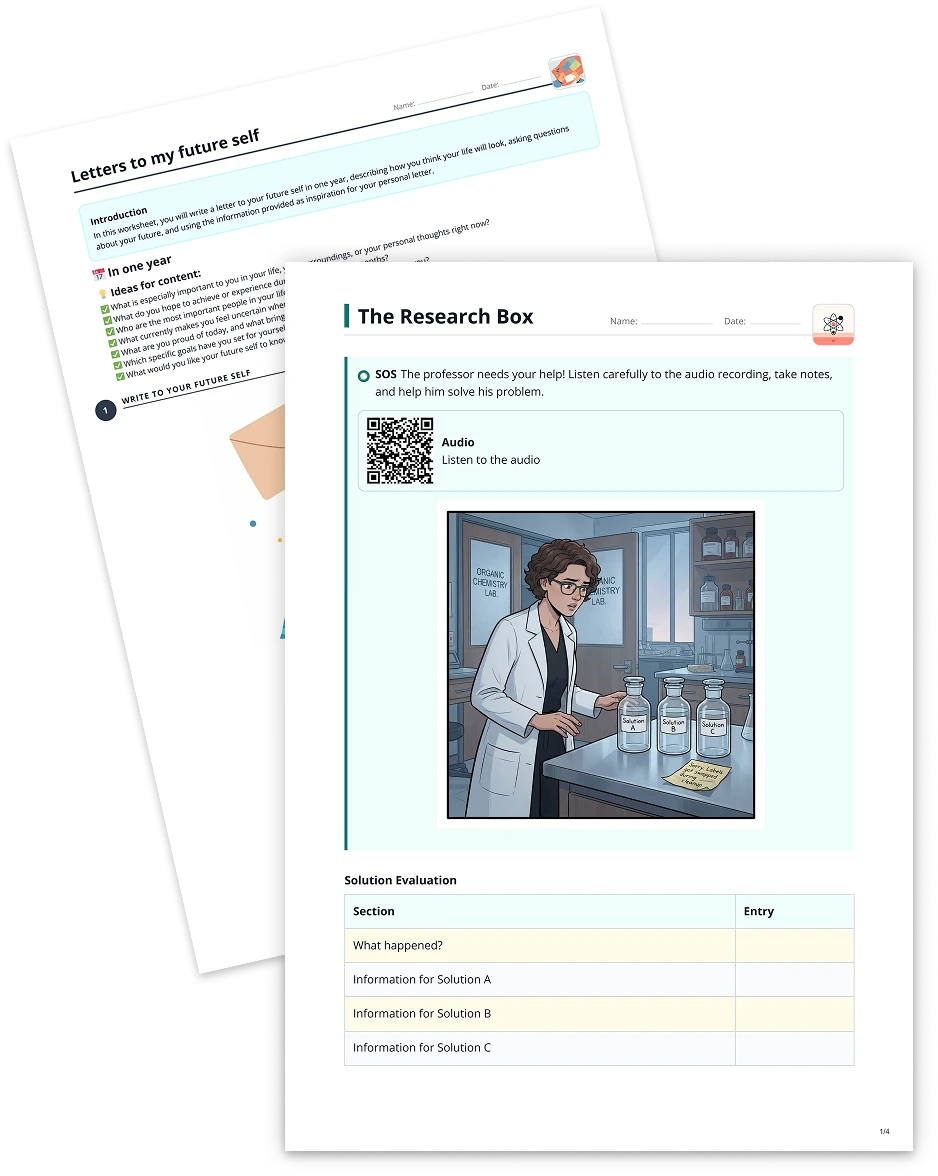
Table2 min read
Transform Your PDF into a Table for Clear Comparisons
Effortlessly convert PDF content into organized tables. This feature is perfect for summarizing large amounts of data, visualizing comparisons, or creating side-by-side references, all in an easy-to-read format.
Create it with to teach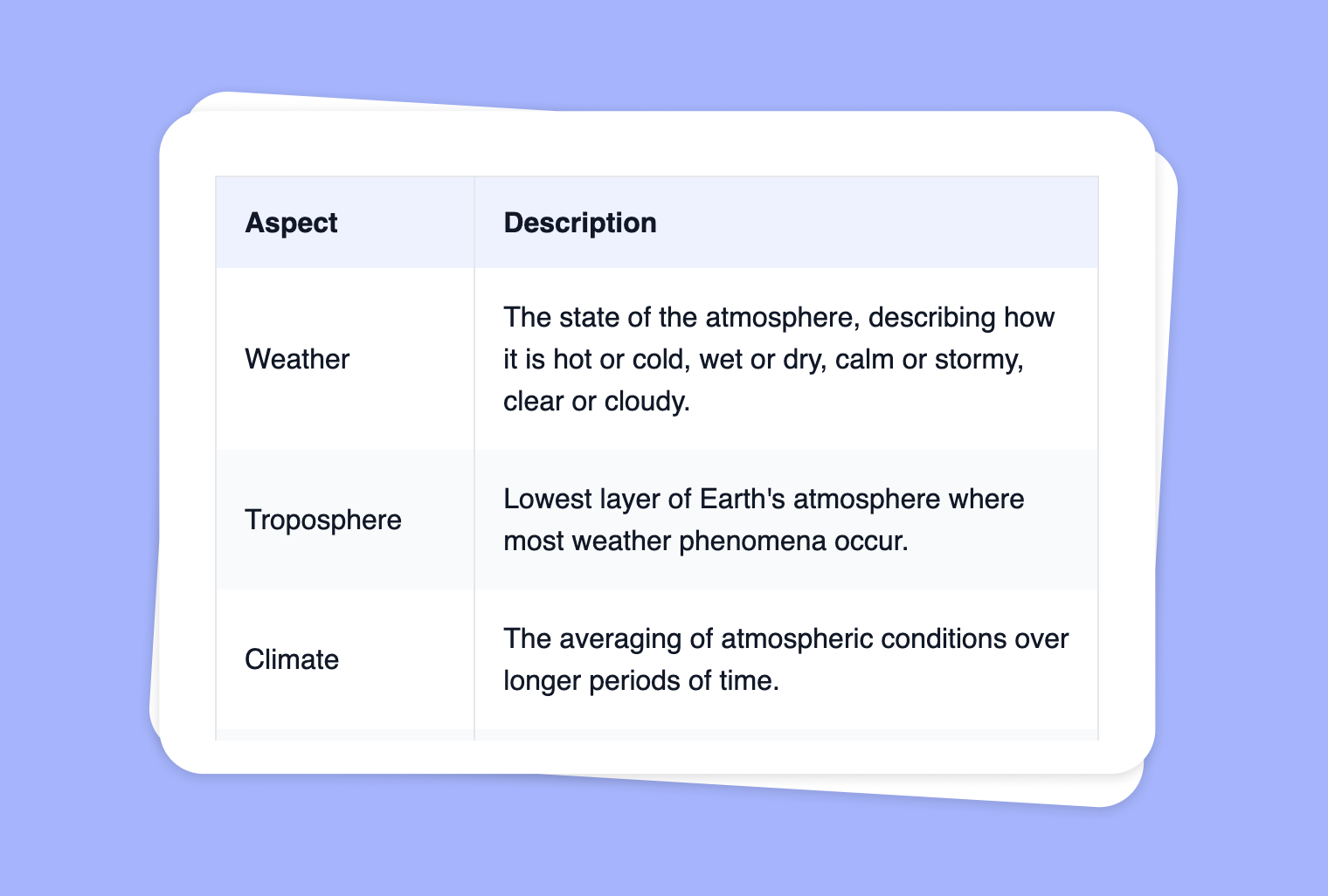
Do you need to transform unwieldy PDF documents into clear, concise tables? to-teach.ai makes it simple to import your PDF and convert the relevant content into a structured table format. Whether you're outlining pros and cons, listing data points, or comparing key factors, our platform can help you save time, communicate ideas quickly, and enhance your teaching materials.
Why Turn Your PDF into a Table?
Simplify Complex Information
Large blocks of text can be transformed into digestible segments, making your content easier to understand.Highlight Key Points
Organize crucial details, such as figures, facts, or definitions, for easy reference and quicker revisions.Versatile Usage
Tables can serve as study guides, comparison charts, or quick references for both you and your students.Customizable Columns
Choose headers to suit your teaching objectives, such as advantages vs. disadvantages, cause vs. effect, or concept vs. definition.Interactive Learning
Encourage student engagement by having them fill in or complete the table for active recall or collaborative projects.
Getting Started
Upload or drag and drop your PDF file into the to-teach.ai interface. Specify your desired table headers and any custom row or column structure. With just a few clicks, our AI algorithms scan your PDF to extract the relevant text and organize it into a clean, orderly table.
Frequently Asked Questions (FAQ)
How do I convert a PDF into a table using to-teach.ai?
Simply upload your PDF, choose the 'Table' option, and set your preferred column headers. The platform automatically arranges relevant text into a table for you.Can I customize the number of columns or table headers?
Yes. You can create as many columns as you need and name them based on the specific information you’d like to highlight.What if my PDF includes visuals or charts?
Only the text elements in the PDF are extracted and organized into a table. Visuals or charts can be referenced separately or attached as images.Is there a recommended PDF length or size for best results?
While to-teach.ai can handle large documents, it’s ideal to break down very lengthy PDFs into sections. This ensures faster loading times and more focused table creation.Can I edit the extracted text once it’s in table form?
Absolutely. You can refine the table after AI extraction, adjusting the layout, headers, or text to match your lesson’s objectives.
More guides
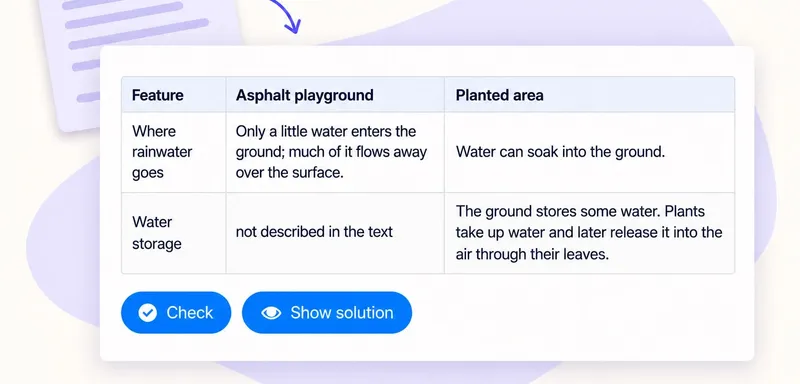
Create a classroom comparison table from a text
A comparison table helps pupils put evidence from a reading side by side. In to teach, add the passage as a Text source, choose Table and name the columns you need in the instruction field. Start with the question pupils
Table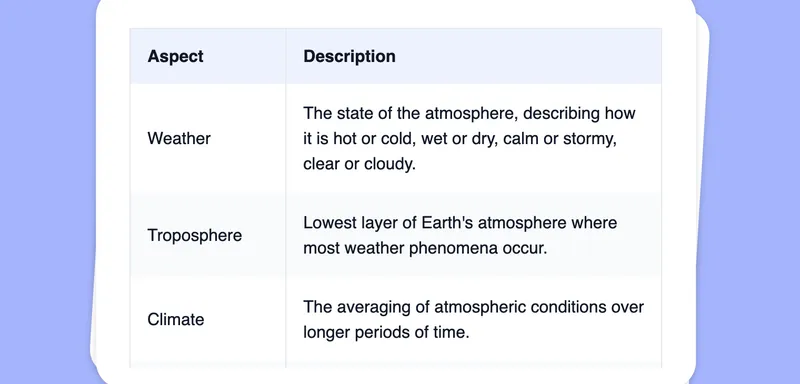
Extract Text from Images into a Table
Effortlessly convert images into editable text, then transform that text into a customizable table using automated AI-driven OCR functionalities.
TableCreate a Table from Your Image
Transform your images into clear, organized tables to effortlessly present data, comparisons, and insights for your students.
Table