Glossary2 min read
Extract Text from Images to Build Your Glossary
Create a glossary and even the most difficult terms will become understandable.
Create it with to teach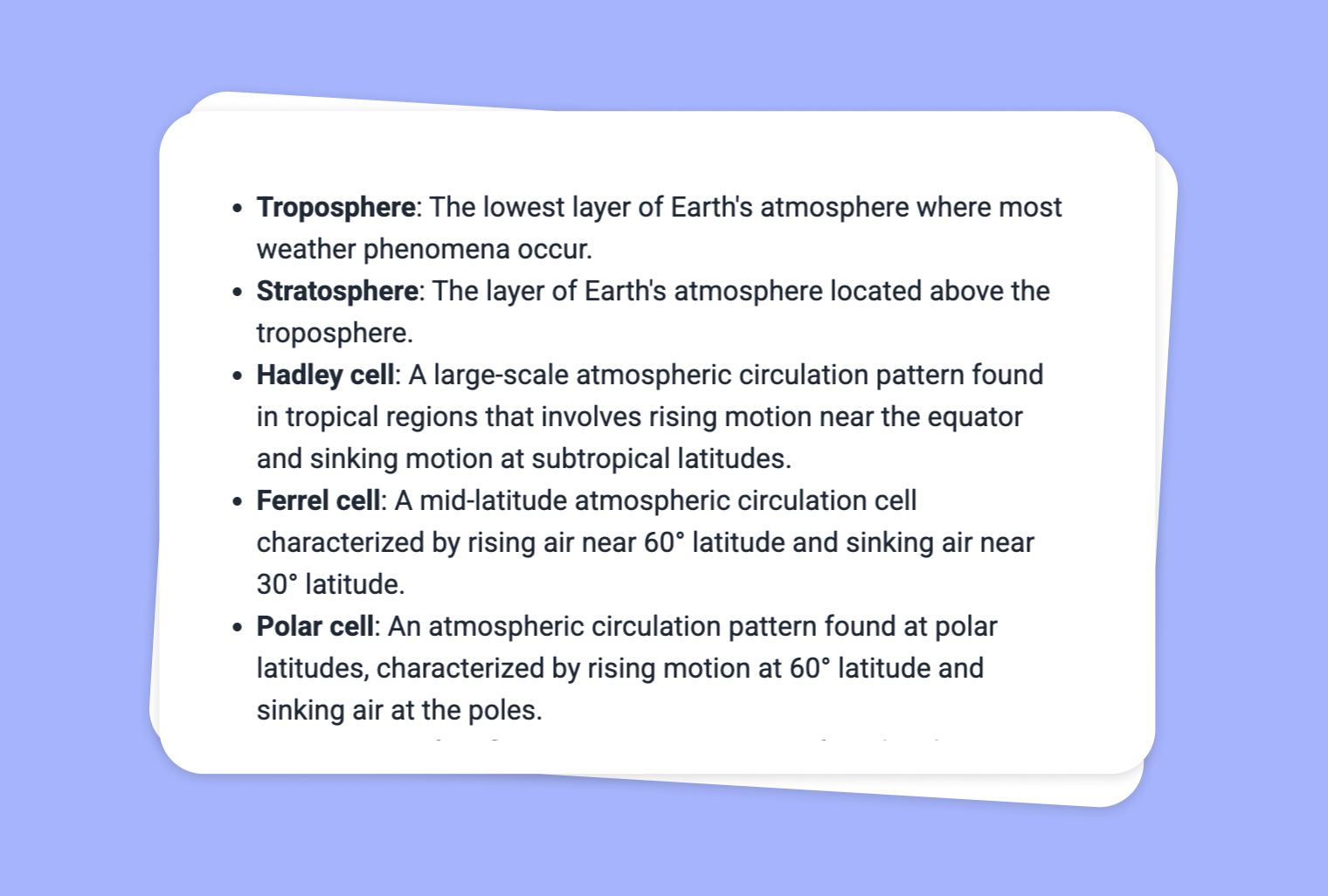
Discover how to make terminology accessible to all learners by transforming images into a handy glossary with to-teach.ai. Our OCR (Optical Character Recognition) feature scans text from images—from textbook pages and classroom handouts to real-world signage—and automatically organizes key words and definitions into a clear, searchable glossary.
Why Turn Images into Glossaries?
Streamline Vocabulary Building
Extracting important concepts directly from images saves time and ensures no critical term goes overlooked.Enhance Knowledge Retention
Students who have quick, readable definitions at hand can better retain material and boost overall understanding.Inclusive Learning at Scale
By automatically defining complex terms, you can accommodate learners of different proficiency levels, including ESL students.Maximize Teaching Efficiency
Spend less time transcribing or typing out terminologies and more time engaging with your students.
Getting Started
- Upload Your Image
Drag and drop or upload any image containing text. Our OCR feature recognizes the text instantly. - Extract Key Terms
The platform identifies significant terms or phrases, which you can refine by adding or removing entries. - Generate Definitions
Let our AI fetch or propose definitions, or craft your own to tailor specific class needs. - Share Your Glossary
Make vocabulary lists accessible to students through PDFs, presentations, or class handouts.
This streamlined process lightens your workload and enriches the educational experience for learners, ensuring that even the trickiest concepts get the clarity they deserve.
Frequently Asked Questions (FAQ)
How do I use OCR to convert images to text on to-teach.ai?
Simply upload your image. Our OCR technology processes the text and automatically identifies key terms to form your glossary.Can I modify the terms and definitions suggested by the AI?
Absolutely. After the extraction, you can edit, add, or remove terms, and provide customized definitions that best suit your classroom.Is the glossary feature suitable for different educational levels?
Yes. You can adapt the complexity of definitions according to your students’ age or language proficiency.What types of image files are compatible with the OCR tool?
Most common image formats like JPG, PNG, and PDF scans are supported, giving you flexibility in how you source your material.Does this work for multiple subjects and languages?
Yes. From literature to science to social studies—and in various languages—our OCR-driven glossary creation adapts to a range of educational settings.
More guides
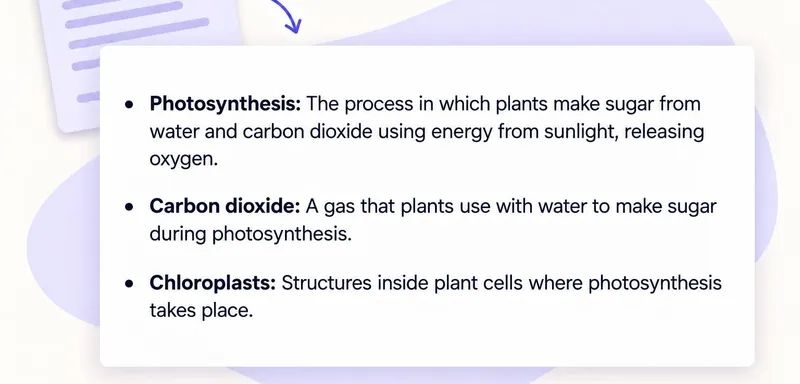
Create a glossary from a classroom text: support vocabulary without rewriting the reading
A glossary gives pupils a short explanation of unfamiliar words while leaving the original reading intact. Use it when vocabulary is the main obstacle: pupils can follow the sentences, but a term such as chloroplasts sto
Glossary
Turn Your YouTube Video Into a Glossary
Create a glossary from YouTube video content to make even the most difficult terms understandable, enhancing students’ vocabulary and comprehension.
GlossaryTransform Your Image into a Glossary
Transform an image into a glossary that clarifies key concepts, simplifying complex terms for comprehensive understanding.
Glossary