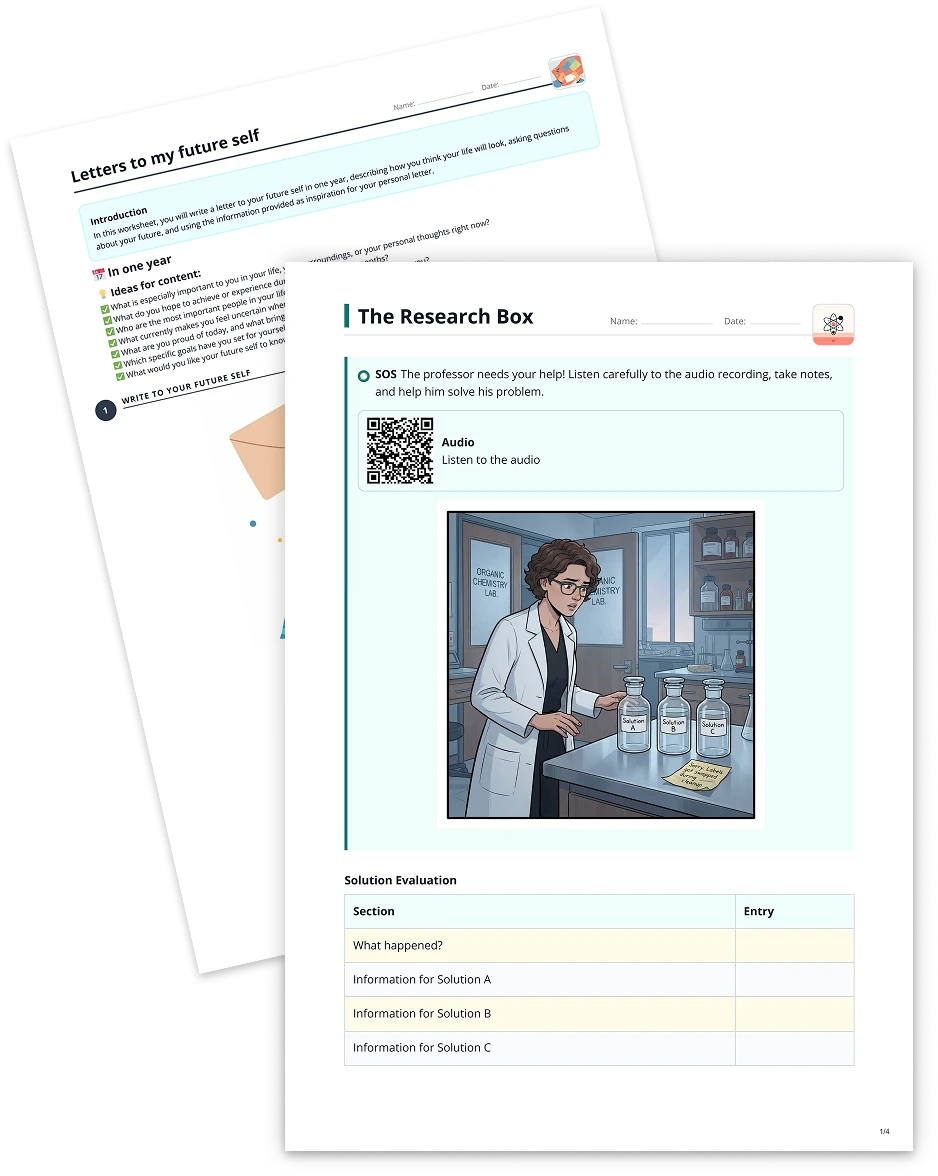
Table2 min read
Extract Text from Images into a Table
Effortlessly convert images into editable text, then transform that text into a customizable table using automated AI-driven OCR functionalities.
Create it with to teach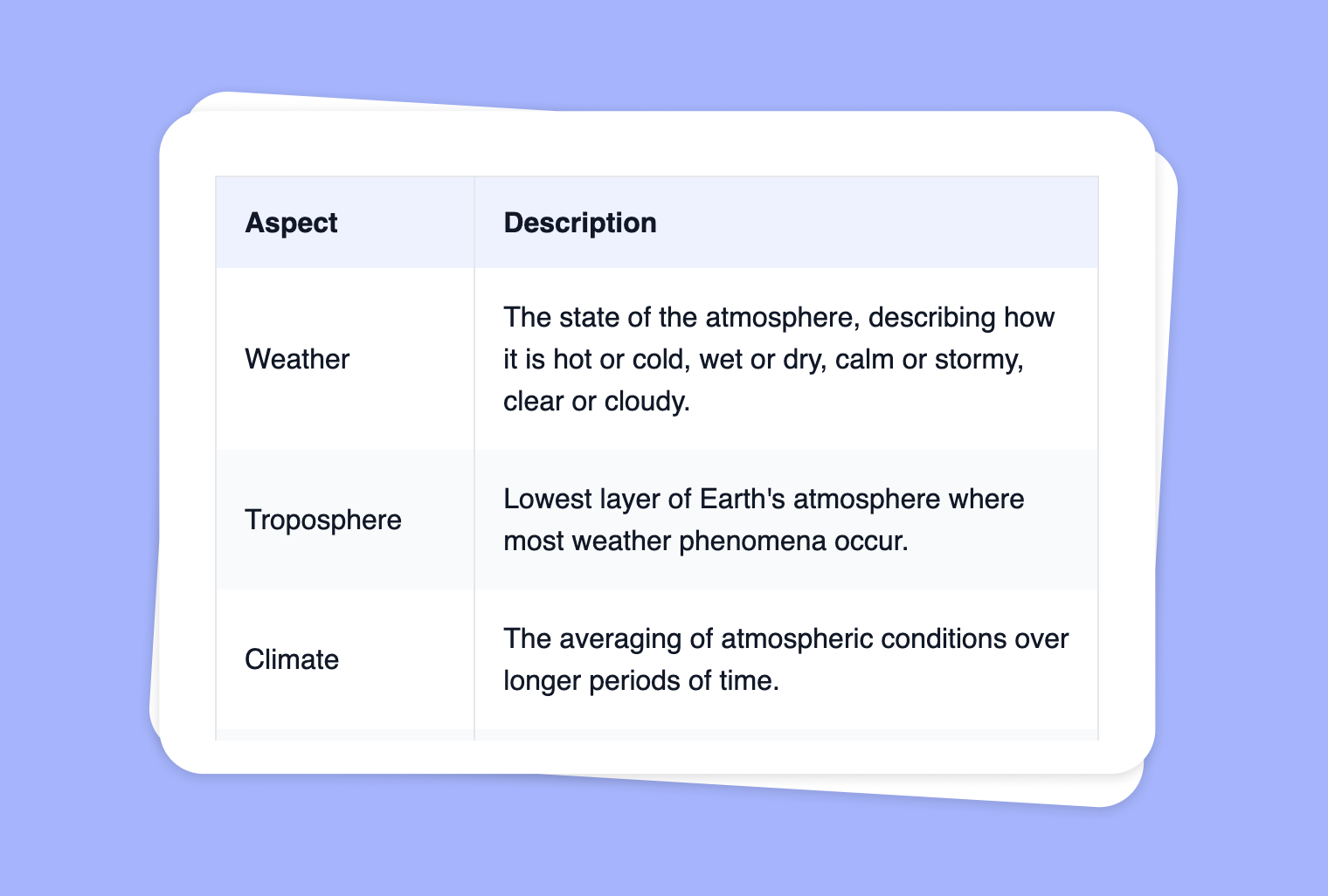
Are you looking for a hassle-free way to extract text from images and neatly organize it into a table? With to-teach.ai, you can use OCR technology to convert any picture or scanned document into editable text. From there, easily map your content into columns and rows—perfect for comparisons, categorization, or summarizing key points.
Why Create a Table from Image-Based Text?
Preserve Critical Data
Converting visuals into structured data ensures that important information like names, dates, or categories remains easy to find and analyze.Simplify Comparisons
Tables make it effortless to compare different aspects of your text. You can highlight pros vs. cons, list features, or map out timelines.Boost Classroom Efficiency
Turn image-based notes into actionable data students can use. Whether summarizing reading material or preparing study guides, tables improve clarity.Enhanced Accessibility
Digitizing text from images ensures that all learners, including those using assistive technologies, can access your course materials more easily.Customize Your Columns
Easily add columns like 'pro, con' or 'definition, example' and visually break down the ideas hidden in your original images.
Getting Started
It’s as easy as uploading an image with text, letting the platform recognize the text, and selecting “Table” as your desired output. Within moments, to-teach.ai transforms the extracted text into rows and columns. You can rename headers, reorder columns, and adjust styling—no manual retyping or complicated processes.
Frequently Asked Questions (FAQ)
How does OCR technology work in to-teach.ai?
Our advanced AI engine scans the image for text-based elements, recognizes them, and converts them into editable text in real time.Can I specify the table headers, like 'Pro' and 'Con'?
Absolutely! After extracting the text, you can set custom headers or column names to organize content in the way you prefer.Is there a limit to the number of columns I can create?
You can add as many columns as you need. Make the table as simple or as detailed as you want.What if the text in my images is handwritten or slightly blurry?
While our OCR is robust, the accuracy may vary based on image quality. Clearer typed text generally yields the best results.Can I edit the table after it’s created?
Yes! You can continue to refine or rearrange your table in to-teach.ai. Add or remove rows, change the column order, and even revise the extracted text.
More guides
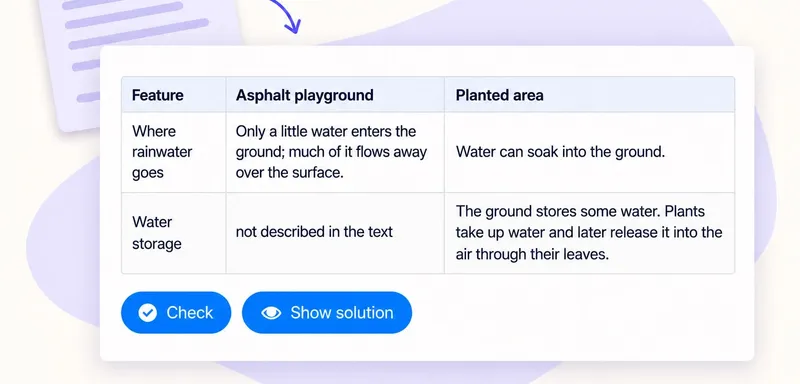
Create a classroom comparison table from a text
A comparison table helps pupils put evidence from a reading side by side. In to teach, add the passage as a Text source, choose Table and name the columns you need in the instruction field. Start with the question pupils
Table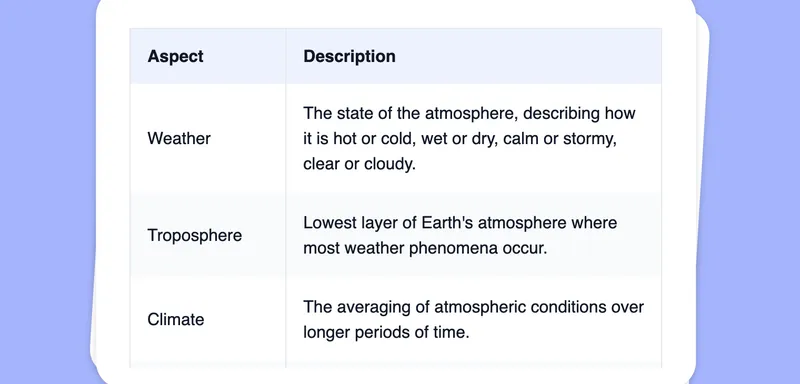
Create a Table from Your Image
Transform your images into clear, organized tables to effortlessly present data, comparisons, and insights for your students.
TableTransform Your PDF into a Table for Clear Comparisons
Effortlessly convert PDF content into organized tables. This feature is perfect for summarizing large amounts of data, visualizing comparisons, or creating side-by-side references, all in an easy-to-read format.
Table