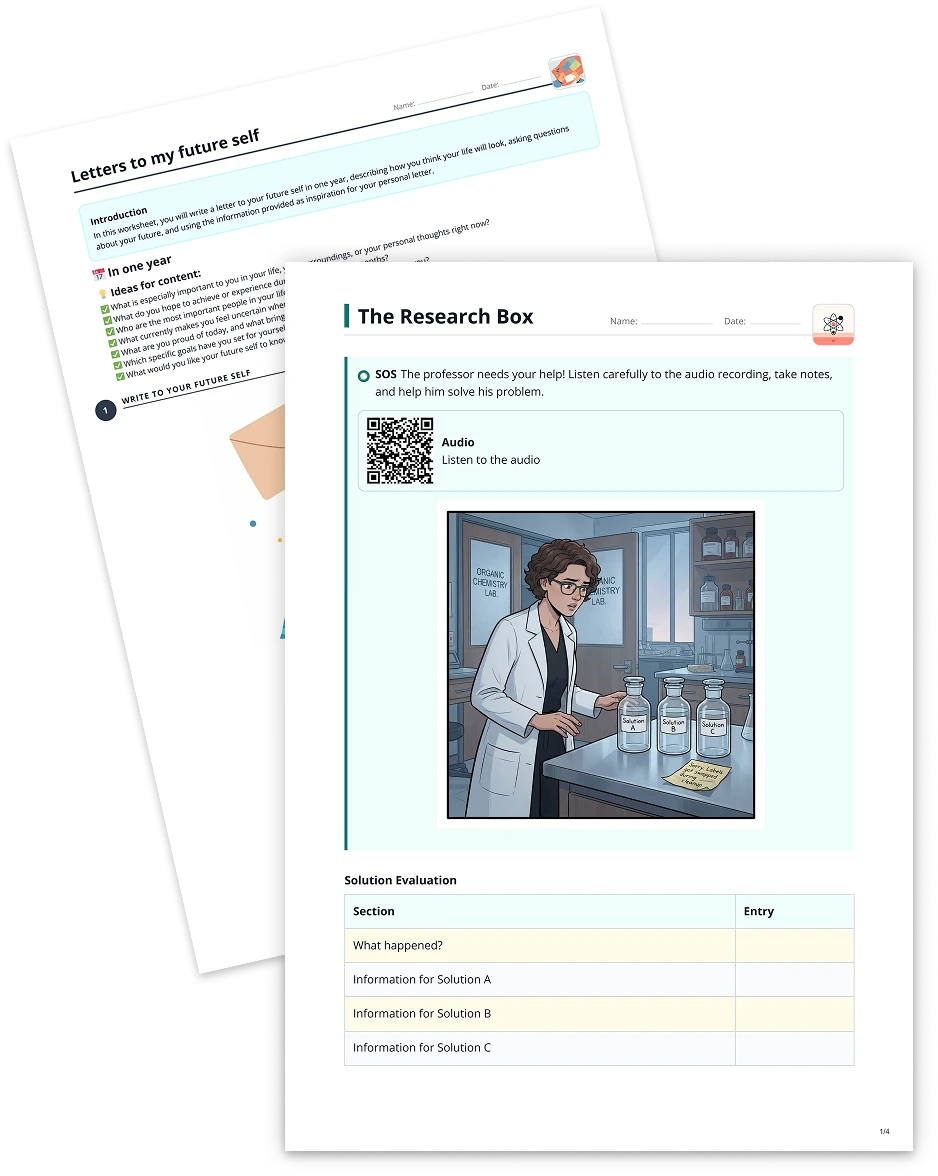
Table2 min read
Create a Table from Your Image
Transform your images into clear, organized tables to effortlessly present data, comparisons, and insights for your students.
Create it with to teach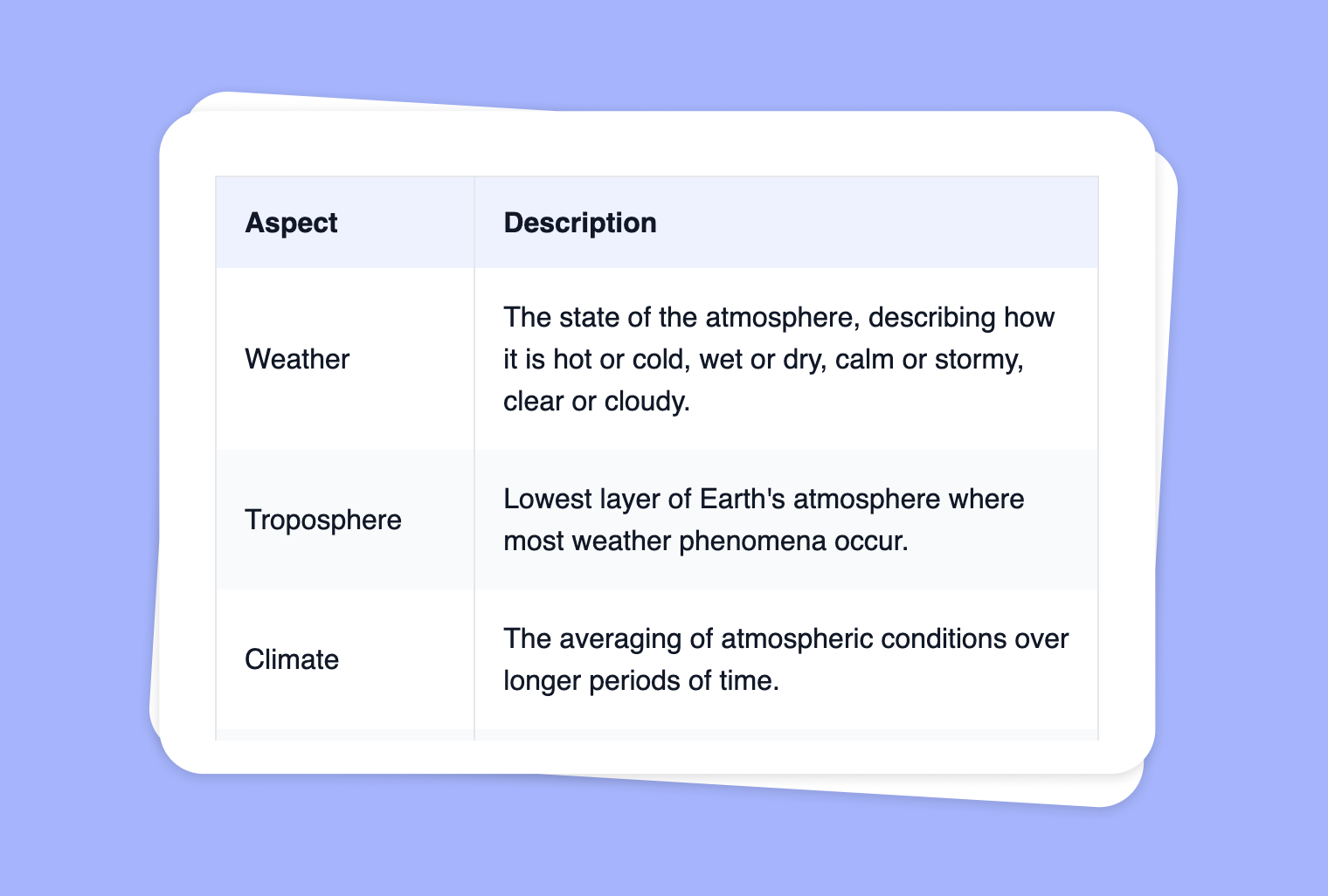
Are you looking to quickly transform an image-based concept or chart into a well-structured, editable table? With to-teach.ai, you can go from static visuals to dynamic tables in a few simple steps. By creating tables directly from images, you’ll save time, increase clarity, and open up a world of possibilities for sorting, classifying, and analyzing information.
Why Convert Images into Tables?
Enhanced Readability
Tables present data neatly, making it more digestible and ending the need for students to interpret cluttered or pixelated visuals.Streamlined Editing
Once the image is converted to a table, you can easily add, reorder, or update rows and columns to reflect real-time content changes.Support All Learners
Empower both visual learners and text-oriented students with a structured, clear-cut layout. Tables eliminate guesswork and help highlight key facts.Versatile Applications
Whether you want a pro-con list, a comparison chart, or a step-by-step guide, tables can seamlessly adapt to any classroom topic or learning objective.Easy Customization
to-teach.ai allows you to add or rename headers, subheaders, and align content to precisely fit the educational context.
Getting Started
With to-teach.ai, all it takes is uploading your image, selecting the 'Table' feature, and optionally adding table headers. The platform uses AI to detect underlying information, ensuring each cell is mapped to the right row and column. Tweak columns, refine text, and instantly share a polished, legible table with your students.
Frequently Asked Questions (FAQ)
How do I turn an image into a table with to-teach.ai?
Simply upload or drag-and-drop your chosen image, then select the 'Table' feature. Our AI automatically extracts text and structures it into rows and columns.What kinds of images work best for table conversion?
Clear photos, screenshots, or PDFs containing tables, charts, bullet points, or textual data yield the best results. High-contrast images help the AI read text more accurately.Can I specify my own headers, such as 'Pros' and 'Cons'?
Absolutely. You can choose the number of columns, rename headers, and adjust the table layout. This customization ensures your table fits the exact learning objective.Is the conversion process accurate for non-English text?
Yes. to-teach.ai supports multiple languages. Just make sure your image is clear and high-resolution so our AI can appropriately detect the characters.How can students interact with these tables in class?
Once generated, tables can be edited online, shared in presentations, or integrated into worksheets. Students can add notes, make comparisons, or highlight key insights.
More guides
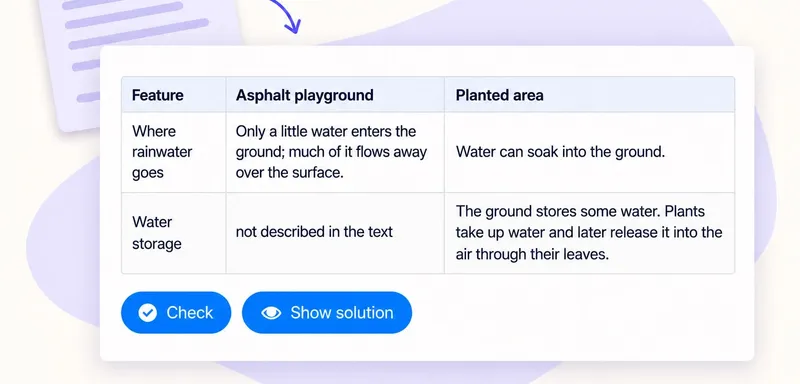
Create a classroom comparison table from a text
A comparison table helps pupils put evidence from a reading side by side. In to teach, add the passage as a Text source, choose Table and name the columns you need in the instruction field. Start with the question pupils
Table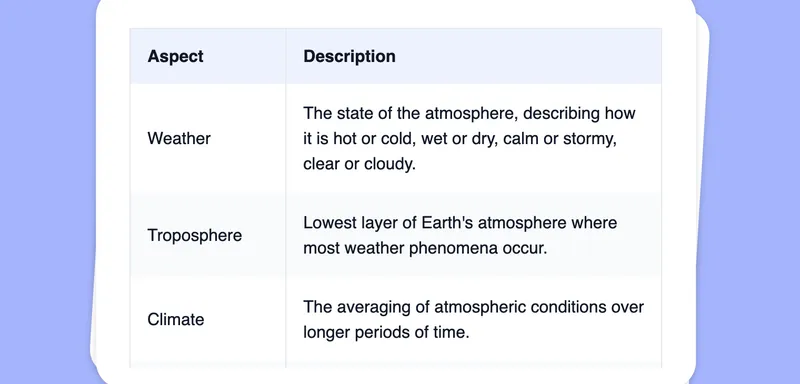
Extract Text from Images into a Table
Effortlessly convert images into editable text, then transform that text into a customizable table using automated AI-driven OCR functionalities.
TableTransform Your PDF into a Table for Clear Comparisons
Effortlessly convert PDF content into organized tables. This feature is perfect for summarizing large amounts of data, visualizing comparisons, or creating side-by-side references, all in an easy-to-read format.
Table