Brisk vs to teach: from lesson planning to classroom materials
Looking for a Brisk alternative for lesson preparation? to teach connects your teaching unit, individual lesson plans and materials for each phase. Brisk combines browser-based resource creation with a web workspace and feedback tools. Here is how those workflows affect what you prepare and how you use it.
By the to teach team · Reviewed: 8 October 2026
Brisk and to teach: where does the preparation happen?
Your task | Brisk | to teach |
|---|---|---|
Work with a resource already open | Browser extension for documents, websites and videos; a separate web workspace is also available. | Create materials in the teaching workspace, using your topic or source. |
Prepare connected materials | Brisk Next groups resources into Bundles and suggests further resources. | Build a lesson unit from lesson plans, then create materials for the phases you are preparing. |
Use materials beyond the platform | Google and Microsoft workflows. | Printable PDF, editable DOCX and interactive H5P worksheets. |
Sources: Brisk’s product FAQ, Brisk Next and to teach’s worksheet formats.
A folder of resources or the next phase of your lesson?
Brisk Next lets you collect a reading passage, activity sheet and exit ticket in a Bundle. Its Next Ideas feature suggests what else to add. That is useful when your starting point is a resource you want to build around.
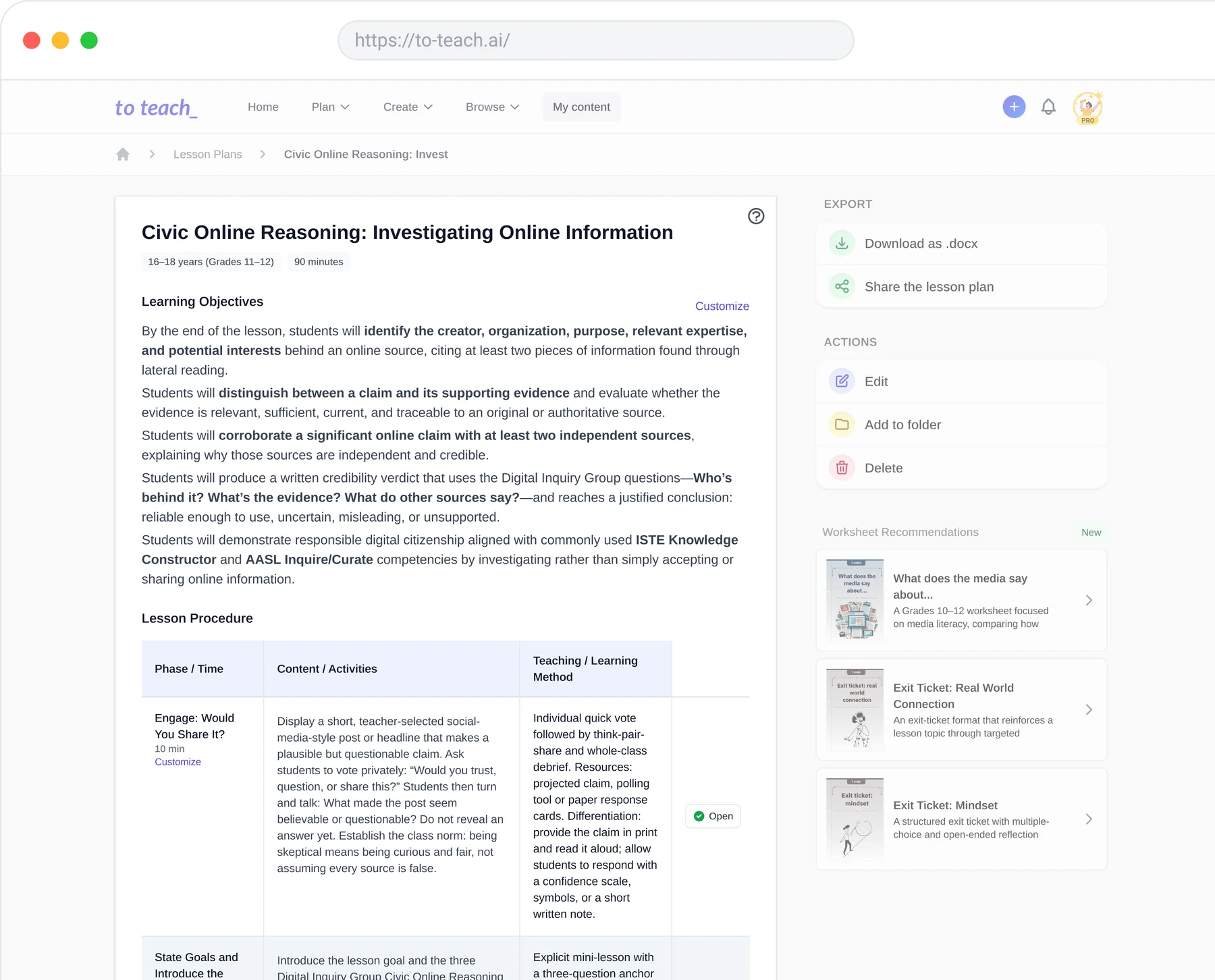
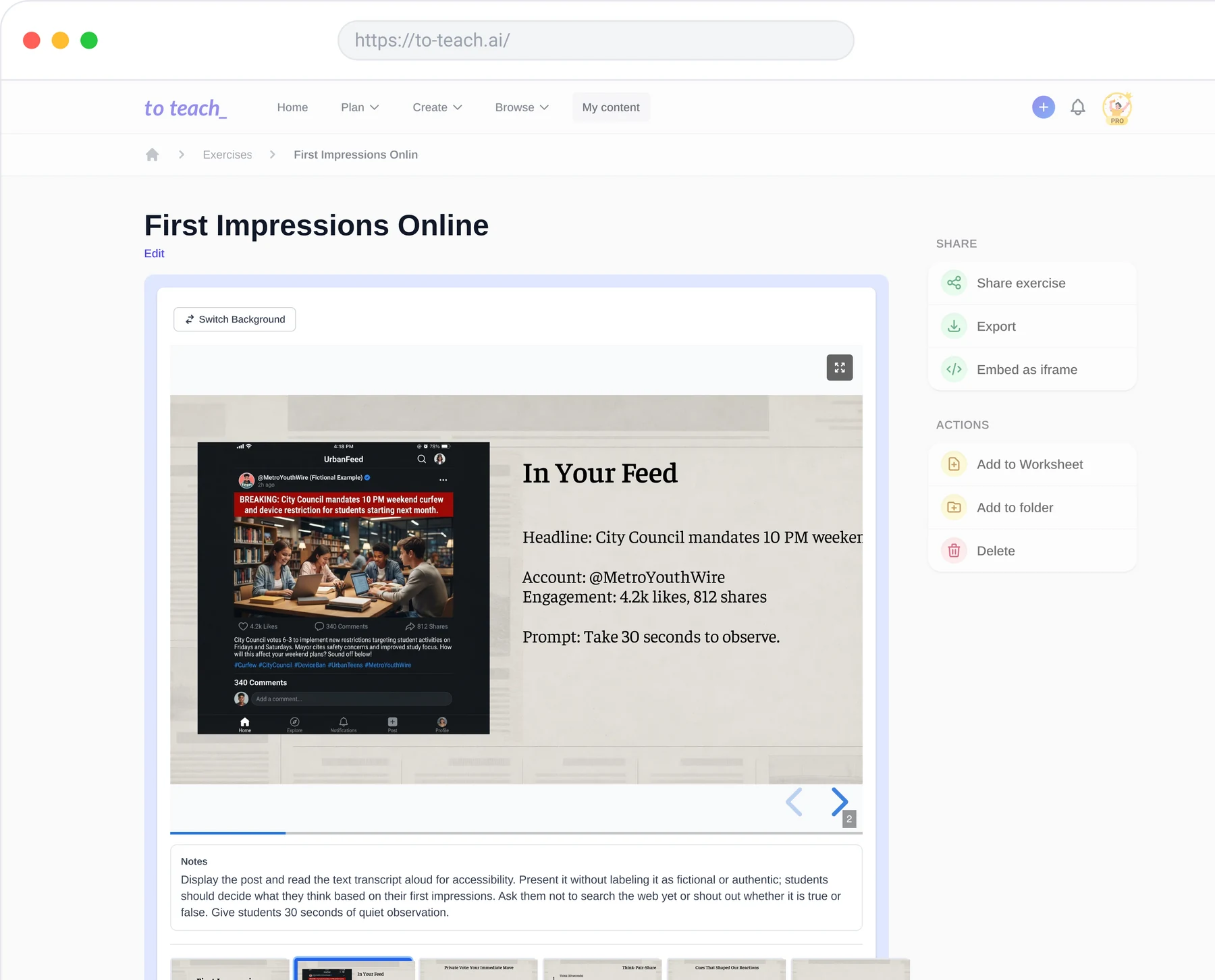
With to teach, you can start with the sequence you want to teach. Develop your unit from lesson plans, open the relevant lesson and create the material needed for its phases. If the plan calls for individual work followed by a group discussion, you can prepare the activities at those points in the plan. You do not have to turn the lesson outline into a separate list of things to ask an AI to make.
The lesson-planning overview shows the editable plan and its connection to materials. Start there if your main job is preparing a sequence of lessons for several classes.
What happens when the material reaches your class?
For a printed class set, an editable handout or an LMS activity, to teach gives you PDF, DOCX and H5P worksheet options. You can choose the format around how your class works, while keeping the preparation in the same product.
Take this English video worksheet: learners work with vocabulary and open questions about plastic. It accompanies Emma Bryce’s TED-Ed video. Open the student PDF and answer sheet to see the actual material, rather than a feature list.
Are you buying preparation support or feedback tools?
Brisk’s writing and batch-feedback features matter when reviewing student submissions is a large part of your workload. Its browser integrations let teachers work with existing documents; it is not just a lesson-plan generator.
For the work before the lesson—planning the sequence, making the activities and preparing versions to print or share—try to teach with a topic you are about to teach. Start a lesson unit, develop the lessons and create the materials for their phases. That is the workflow to judge, rather than the number of separate AI tools on either homepage.
Compare the current Brisk plans and to teach plans against the features you will use. Then plan your next lesson with to teach.
Prepare your next lesson, step by step